
Signal / Overlay study
Does the graphic work in the shot?
Place the overlay against the picture and compare its position and opacity. Use the result to give a specific request for the next graphics pass.
Explore the workflowFrom source material
to a draft.
Follow the selection, the source check and the proposed next step. Switch between the three illustrated stages.
Mergi works with saved project material.Interactive illustration. No production work is processed here.Find the space for the overlay.
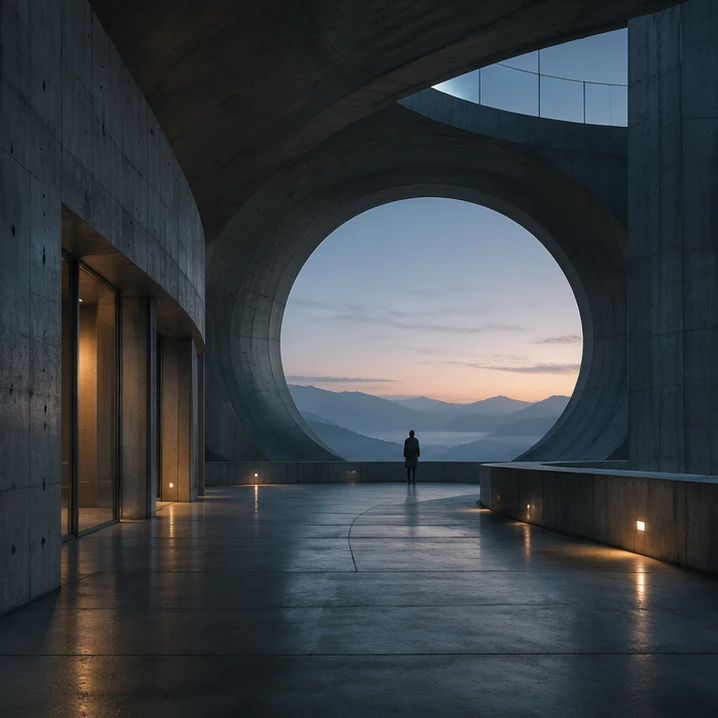
The light and the person already guide the eye. Reading the plate first gives the overlay a job, rather than another element competing for attention.
Signal / Overlay studyIllustrative materialShow or hide the local illustrative overlay with its control.
For you to reviewCompare position and opacity.
Use the illustrative control to compare position and opacity. See how much presence the graphic needs against this particular shot.
 Signal / Overlay studyIllustrative material
This is a real website-layer control, not a compositing application.
For you to reviewCheck the shot with and without it.
Compare the shot with the overlay present and absent. Then check the real alpha source and rendered result in production; this website control is only an illustration.
Signal / Overlay studyIllustrative materialSource imagery does not certify alpha-codec compatibility.
For you to reviewWhat you bring.
- A source shot
- A supported transparent graphic
- The intended timing and position
Place the approved overlay in the shot. Compare timing and opacity, then check the actual rendered output.Example brief. This illustration does not process or save work.
What you work on next.
- A layered timeline draft
- A composited review version
- A focused transparency check
The designer checks the real alpha source, browser preview and export.
The controls here adjust an illustrative SVG overlay. Actual alpha codecs, Safari support and export require separate checking.
Related tasks.
More for vfx teams Shot direction
Turn “more subtle” into a shot brief.
Show the plate, point to the area that should change and place a reference beside it. Keep timing and open questions on the same board for the supervisor.
Explore the example Timing study
Try the timing before finishing the shot.
Compare a long hold with a shorter movement using a simple motion study. Choose the timing before the team builds the detailed treatment.
Explore the example